
How to add an asset, field by field
How to add an asset is a ninety second job once you know what belongs in each field, and getting those ninety seconds right is what separates a register that answers questions from one that just stores rows. Adding an asset takes about ninety seconds once you know what belongs in each field. Getting those ninety seconds right is what separates a register that answers questions from one that just stores rows. This guide goes through every field on the form and explains what it is actually for.
Before you start
- Categories, locations and departments already set up in Settings. The form reads its drop-downs from there.
- The physical asset in front of you, or a photograph of its rating plate. Serial numbers copied from a delivery note are wrong more often than people expect.
- The asset number you are going to put on the tag, following your numbering convention.
- The purchase cost and purchase date if you want depreciation to run. Without these the asset still exists in the register, but it will not appear correctly in finance reports.
How to add an asset, step by step
-
Open Add Asset
From the left navigation, under Main, click Add Asset. The form is split into sections: Identification, Specifications, and Location and Assignment. Fields marked with an asterisk are required; the rest can be completed later as information becomes available.
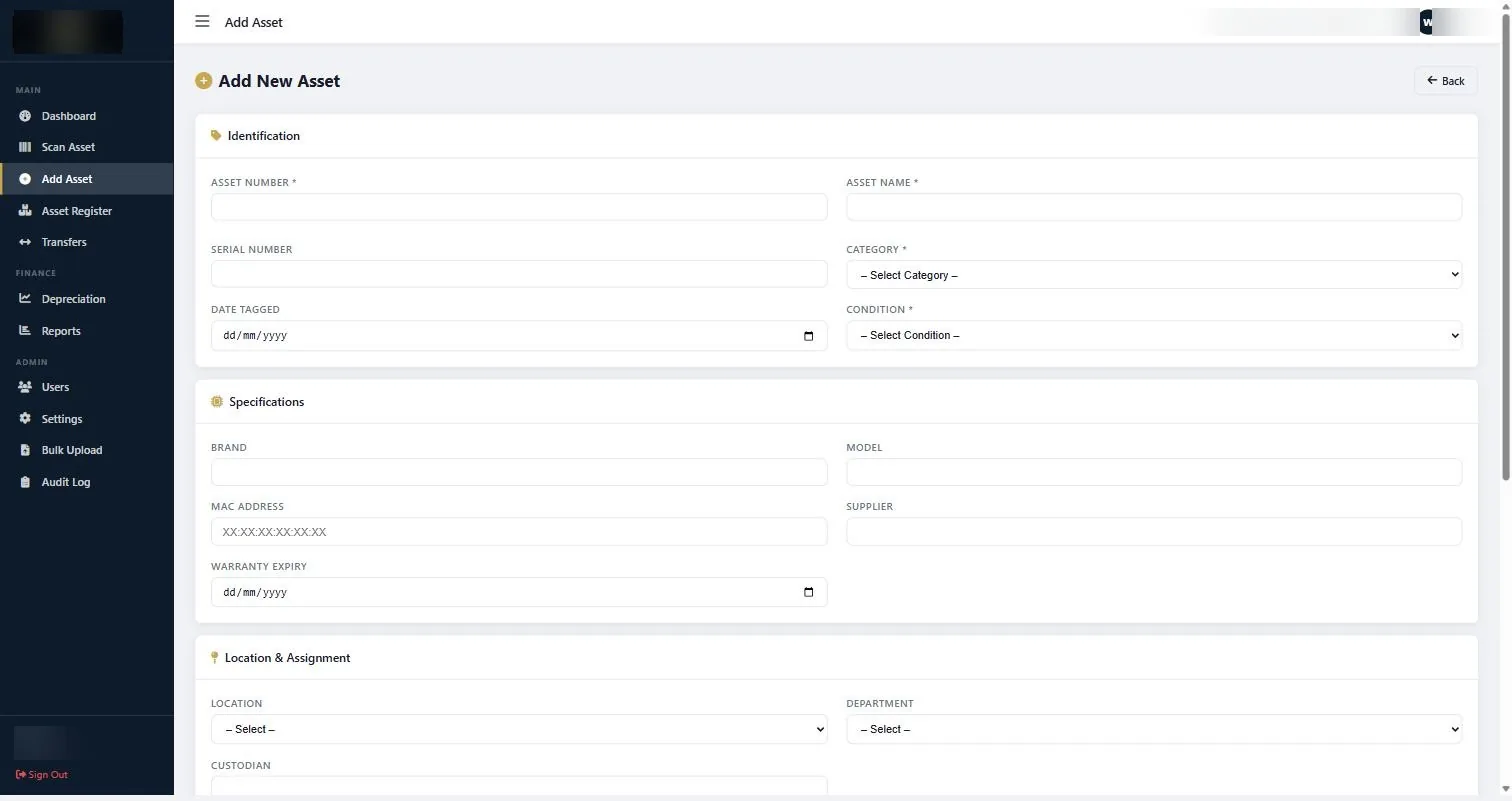
The Add Asset form, showing the Identification, Specifications and Location and Assignment sections. -
Fill in Identification
Asset Number is the number that will be printed on the physical tag. It must be unique. This is the field you will search on, read out over the phone, and scan. Keep it short.
Asset Name is a plain description. Write it as you would say it to a colleague: Dell Latitude 5540 laptop, not ICT-EQUIP-PORTABLE-COMPUTING-DEVICE. The name is what makes a report readable.
Serial Number is the manufacturer’s number from the rating plate or label. Fill it in whenever the asset has one. If a tag is ever damaged or removed, the serial number is what proves which record belongs to which item.
Category drives depreciation and the finance reports. Pick the category your accounts recognise, not the one that feels most descriptive.
Date Tagged is the date the physical tag went onto the asset. This is not the purchase date and the two are frequently different, sometimes by years.
Condition is a snapshot judgement: good, needs repair, obsolete, needs replacement, new. Be honest here. A register where everything is Good is a register nobody has looked at.
-
Fill in Specifications
Brand and Model matter more than people expect. When you eventually need to buy a replacement part, or work out whether ten printers are actually the same printer, these two fields do the work.
MAC Address applies to network-connected equipment. If your IT team maintains a separate inventory, this field is what lets the two be reconciled without guesswork.
Supplier is who you bought it from. Useful for warranty claims and for spotting that four different departments are buying the same thing from four different vendors at four different prices.
Warranty Expiry is worth filling in on anything with a warranty. It is the difference between claiming and not claiming.
-
Fill in Location and Assignment
Location is where the asset physically is right now. Not where it is supposed to be, and not where it was delivered.
Department is the cost centre that carries it. This is the field that lets you hand a head of department a list and have the conversation about what they hold.
Custodian is the named person responsible. Assign a person, not a role, and not a department. Roles do not answer emails.
-
Enter the financial fields
Purchase price and purchase date feed depreciation. If you leave them blank the asset still exists and can still be scanned and verified, but it will be missing from the depreciation schedule, and finance will notice.
If the true purchase cost genuinely cannot be established for an old asset, record what you can defend, and note in the record how the figure was arrived at. An auditor will accept a documented estimate far more readily than a confident number with no basis.
-
Save, then verify the record appears
Save the asset, then open Asset Register and search for the asset number you just used. Confirm the record is there and the fields read as you intended.
Doing this for the first ten assets you enter is worth the time. It surfaces habits, like a category being consistently mis-picked, while they are still cheap to correct.
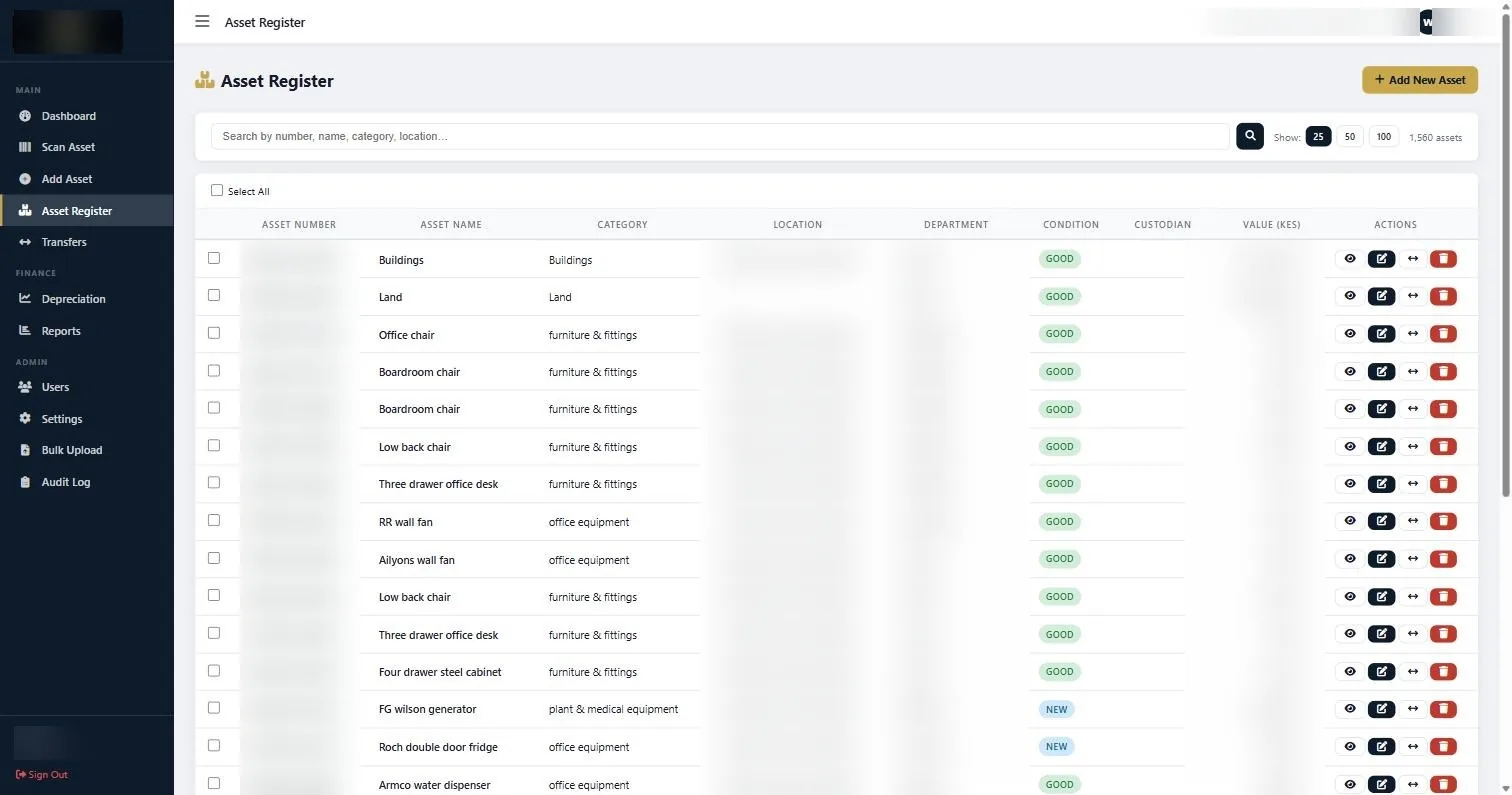
The Asset Register listing, where every saved asset appears and can be searched by number, name or serial.
If something does not look right
| What you are seeing | Why | What to do |
|---|---|---|
| The system rejects the asset number | Another record already uses it. | Search the register for that number. If the existing record is a duplicate created in error, correct it. If it is real, your numbering sequence has collided and needs checking. |
| The category you want is not in the list | Categories come from Settings. | Add it in Settings first. Do not force the asset into a category that is nearly right; it will distort the depreciation schedule. |
| Depreciation does not appear for the asset | Purchase price, purchase date or category is missing. | Open the record and complete the financial fields. Depreciation cannot be calculated from a cost that was never entered. |
| Two people entered the same asset | Common when tagging and data entry run in parallel. | Keep the record with the better data, delete the other, and make sure only one physical tag is on the item. |
Worth knowing
- Enter assets as they are tagged, not in a batch at the end of the week. Memory of what was in which room does not survive a weekend.
- Photograph the rating plate rather than copying the serial number by hand. Transcription errors in serial numbers are extremely common.
- If an asset has no serial number and no distinguishing marks, the tag is the only identity it has. Fit it properly.
- Use Bulk Upload rather than the form when you are loading more than about fifty assets at once.
Common questions about how to add an asset
What is the difference between date tagged and purchase date?
Purchase date is when the organisation acquired the asset and it drives depreciation. Date tagged is when the physical label went on. For a first-time tagging exercise, every asset in the building gets the same date tagged and wildly different purchase dates.
Do I have to fill in every field?
No. Asset number, name, category and condition are required. Everything else can be completed later. But a record with no serial number, no cost and no custodian is barely more useful than a sticker on a wall.
Can I edit an asset after saving?
Yes. Open it from the Asset Register and edit. Changes are recorded in the Audit Log, which is exactly what you want when someone asks why a value changed.
How do I record an asset that belongs to a project or a donor?
Use the department or notes field to record the funding source consistently. Donor reporting becomes a filter rather than an investigation when this is done from the start.
What should I do about assets I cannot find a cost for?
Record a defensible estimate and document how you reached it. An undocumented number is worse than a documented estimate.
Can I add an asset from my phone?
The system runs in a browser, so yes, if the device has a browser and access. In practice most tagging teams capture on paper or a tablet and enter in batches, because typing long serial numbers on a phone is slow.
If you are training a team on how to add an asset, work through this guide once together on a real item rather than a test record. The habits set on the first day are the ones that stick.
Related guides
Ready to get your assets under control?
Call us to discuss your organisation, or email your asset list and we’ll scope it for you.