
How to add users and control who can do what
How you manage users and access decides how much of the register you can trust, because every edit is only as reliable as the person who was allowed to make it. Access control in an asset system is not about secrecy. It is about making the audit trail mean something. If four people share one login, the Audit Log can tell you that an asset value changed and nothing at all about who changed it. This guide covers adding users, deciding access levels, and the housekeeping that keeps the list honest.
Before you start
- Super Admin access. This is the account STL sets up for your nominated owner at handover.
- A list of who genuinely needs access, and what each of them needs to do. Not a list of everyone who has asked.
- Work email addresses for each user. Personal addresses for a work system create a problem the day somebody leaves.
How to manage users and access, step by step
-
Work out who needs access, and for what
Before adding anybody, write down the jobs, not the people. In most organisations there are four.
Register owner. One person, usually finance or administration. Needs everything, including Settings and Users.
Day to day operator. Adds assets, records transfers, runs scans. Needs Main, does not need Admin.
Finance. Runs depreciation and reports. Needs Finance and read access to the register.
Reader. Department heads, internal audit, external auditors. Needs to look, not to change.
Then map real people onto those jobs. It is almost always fewer accounts than the initial request.
-
Open Users and add each person individually
Under Admin, click Users. Add each person as their own named account with their own work email address.
Do not create a shared operations account, however convenient it seems during a tagging exercise. The moment two people use one login, every record in the Audit Log becomes unattributable, and the log is the reason the system can answer difficult questions.
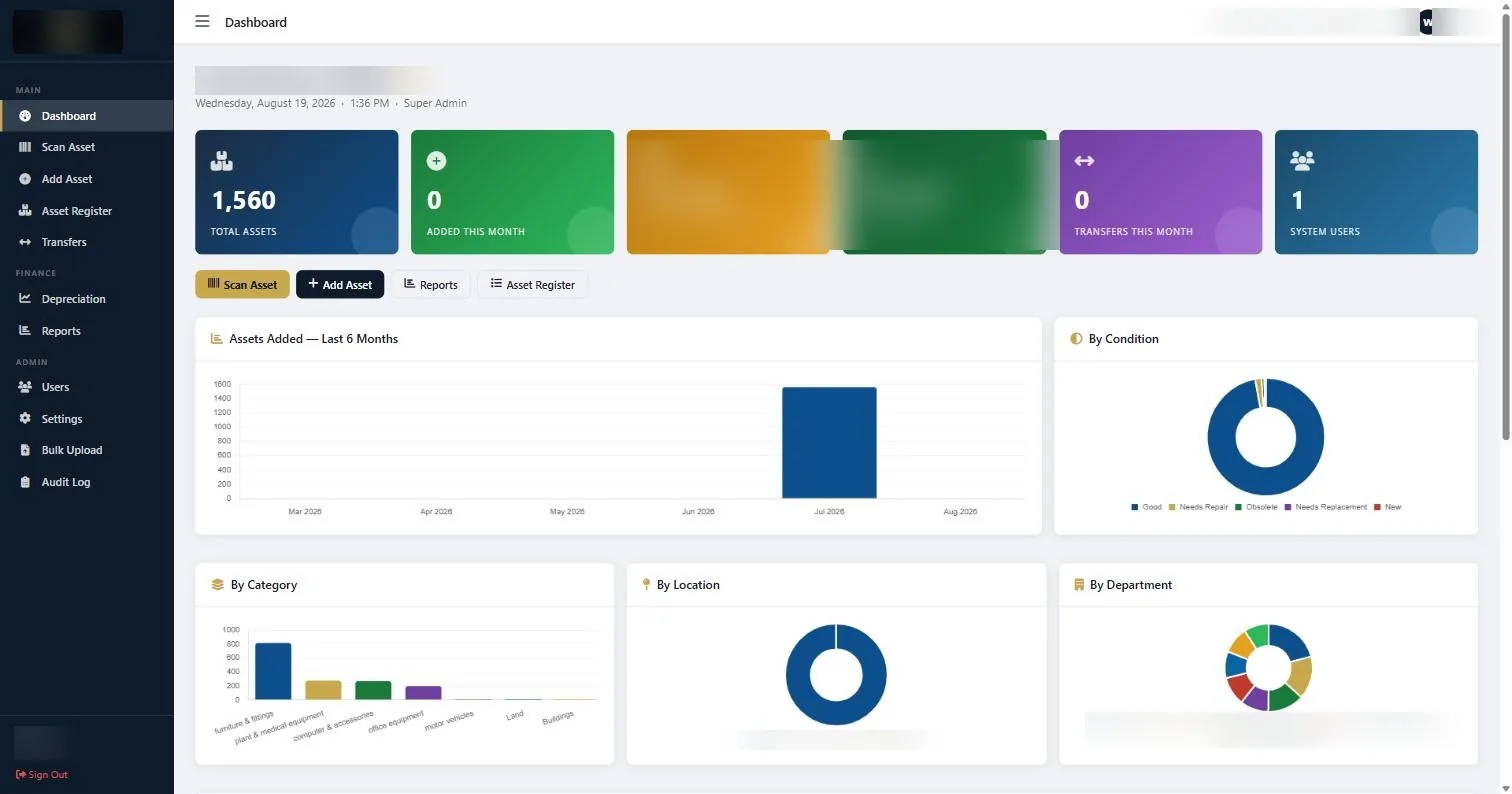
The Users screen sits under Admin, alongside Settings, Bulk Upload and the Audit Log. -
Give the narrowest access that lets the job be done
Access should follow the job you defined in step one. A person doing verification rounds needs Scan Asset and the Asset Register. They do not need Settings, and giving it to them is not generosity, it is exposure to accidental damage.
The two settings worth being most careful with are Settings, because changing a category or a depreciation rate changes numbers across the whole register, and Users, because it is how access escalates.
-
Set up the auditor account before fieldwork, not during
Give your external auditor a read-only account at the start of the audit rather than emailing exports through the engagement. It removes a whole category of back and forth, and it means they are looking at the live register rather than a snapshot that ages while they work.
-
Remove access the day someone leaves
Deactivate the account on the last working day. Put it on the exit checklist next to keys, access cards and email, because that is the only place it will reliably happen.
Deactivating a user does not remove their history. The Audit Log keeps what they did, which is exactly right.
-
Read the Audit Log occasionally
Open Audit Log under Admin and read it once a quarter. You are not looking for wrongdoing. You are looking for patterns: values being edited rather than transferred, one person making all the changes at eleven at night, categories being changed after a report has been run.
Most of what you find will be process problems rather than people problems, and both are worth knowing about.
-
Review the user list twice a year
Open the list and check every account against a current staff list. Accounts belonging to people who left, or to people whose job changed a year ago, are the most common finding. Ten minutes, twice a year.
If something does not look right
| What you are seeing | Why | What to do |
|---|---|---|
| A user cannot see Settings or Users | Their account does not have admin access. | This is usually correct and deliberate. If they genuinely need it, raise their access; if they need one specific change, make it for them. |
| Everyone is using one login | A shared account was created during setup and never replaced. | Create named accounts now and retire the shared one. Every day it continues is another day of unattributable history. |
| A former employee’s account is still active | Exit process does not include system access. | Deactivate it now, then add access removal to the exit checklist so it is not a memory exercise. |
| Nobody knows who the Super Admin is | Handover happened informally, or the original owner left. | Identify the account holder, and nominate a documented backup. A single undocumented admin is an operational risk. |
Worth knowing
- One named account per person, always. Shared logins destroy the value of the Audit Log.
- Give the auditor a read-only account rather than emailing exports back and forth.
- Nominate a documented backup for the Super Admin account. Single points of failure take holidays.
- Review the user list against the staff list twice a year.
Common questions about manage users and access
How many admin accounts should we have?
Two. One owner and one documented backup. More than that and configuration changes stop being traceable to a decision.
Can we give department heads access to see only their own assets?
Give them read access and send them the Assets by Department report. In practice most department heads want a list once or twice a year rather than a login they will forget.
Does deactivating a user delete their records?
No. The assets they created and the changes they made stay, along with their attribution in the Audit Log. That is the point of an audit trail.
What does the Audit Log actually record?
Changes made in the system and who made them. It is what lets you answer why a value, location or condition is different from what it was.
Should our external auditor have a login?
Yes, read-only, for the duration of the audit. It saves days of email and gives them the live position.
What if the Super Admin leaves the organisation?
Transfer the role before the last working day. If that has already been missed, contact STL and we will help you re-establish administrative access through your organisation’s nominated contact.
Review who can manage users and access every time somebody changes role, not only when they leave. Dormant administrator accounts are the ones that cause trouble.
Related guides
Ready to get your assets under control?
Call us to discuss your organisation, or email your asset list and we’ll scope it for you.